WordPress: Subscription Booster
Last updated 01/13/2026
You can add the Bread & Butter Subscription Booster to any page on your site. The Subscription Booster window appears after a specified number of seconds. It prompts users to subscribe through a trusted account or using an email address.
Bread & Butter remembers who has signed up, and won’t prompt subscribers again. The Subscription Boosterwill be hidden for 24 hours for users who dismiss it without authenticating.
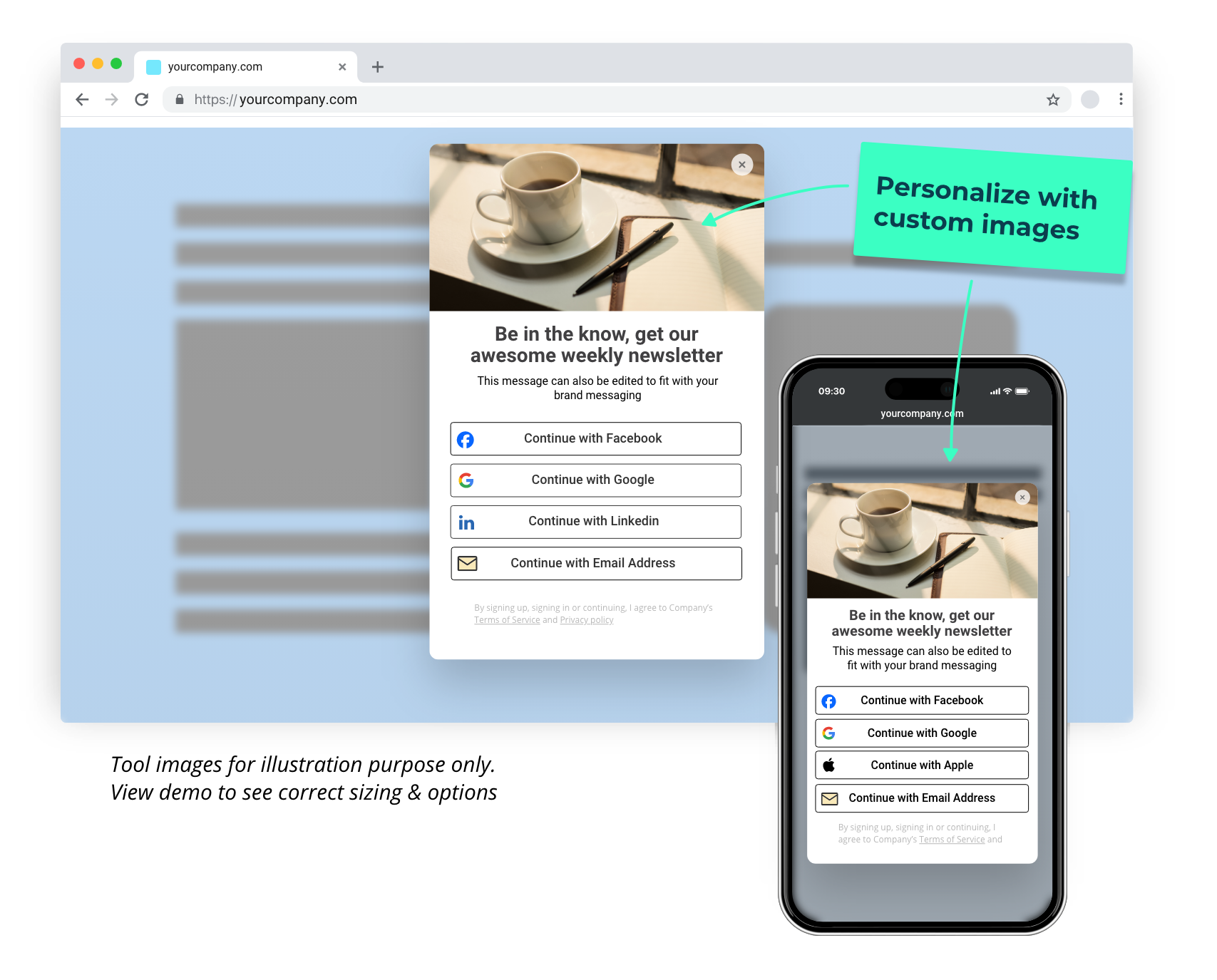
You can add the Subscription Booster to any page on your site, and configure the content you want it to display, including background image.
Step 1
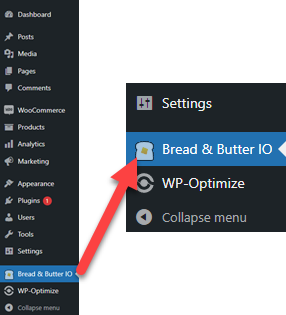
In the left menu in WordPress Admin, click on Bread & Butter.
Step 2
In the left menu, select Subscription Booster.
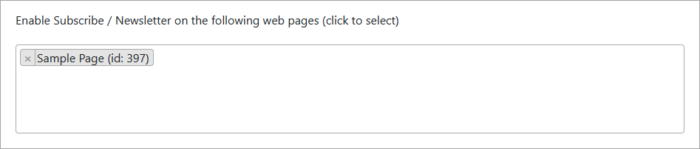
Then select the webpages or post categories that you want the Subscription Booster to appear. You can choose one or many pages.
Step 3
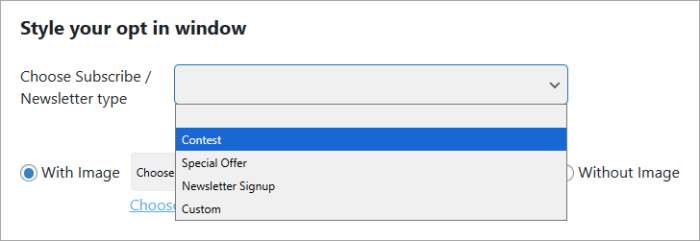
Choose the Subscription Booster type that best fits your needs. This setting will pre-populate suggested text, and a custom event name for you. You can also edit the text any time you want.
If you want to fully customize everything select "Custom".
Step 4
Set up the image that will appear in the left side of the window. You can choose from a set of default images included in the WordPress plugin, your own custom image, or no image.
- To choose from our default images, click on Choose from library and a pop up of assorted images will appear. Choose the one you want, then click Close.
- To use your own image, click Upload your own to upload your own image. Recommended size: 450 x 600 pixels.
- If you don't want an image at all, select Without image,

Step 5
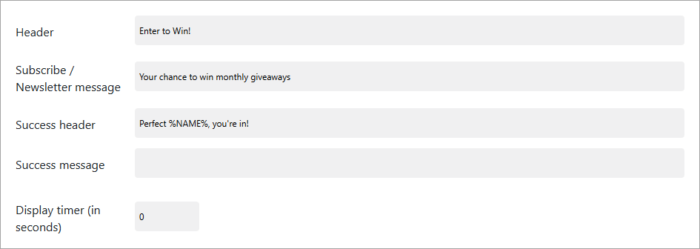
Set up the messaging that will prompt the user to sign up.
- The Header is the text that appears at the top of the window.
- The Subscription Booster message is the main body of text in the window. This should explain what your through the Subscription Booster is, and why the user would want to sign up.
- The Success header is the header message that users see after they have signed up successfully.
- The Success message is the main message that users see after they have signed up successfully.
- The Display timer is the number of seconds after the page loads that the Subscription Booster appears.
Step 6
Set custom colors in the tool to better match your website. The default colors are displayed, but feel free to edit as needed.
- The Font color is the color of the font you just set above, for header, message, etc.
- The Button color is the color of the submit button in the tool. If you change this, make sure you change the button font color as well, so that they align.
- The Button font color is the color of the font inside the submit button.

Step 7
(Optional) Enable Override Registration Destination URL if you've set a Registration Destination URL in your app settings, but want that to not apply to Content Preview pages.
If you do not have a Registration Destination URL set in your app settings, you can ignore this setting.
Step 8
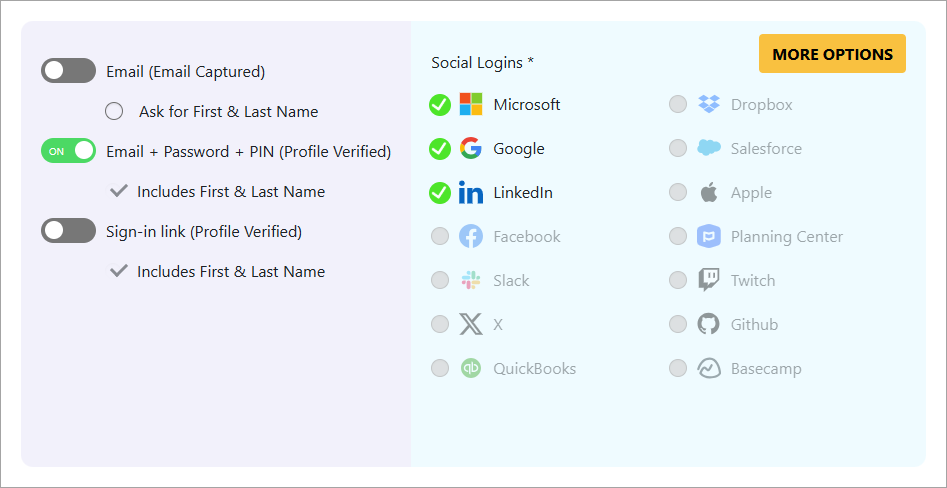
Set custom conversion methods for this tool. In the Bread & Butter Webapp, a default set of sign in options (conversion methods) were automatically created. You can change these options for all tools via the Webapp Settings page.
However, if you want this tool to use a different set of options from what you've selected in the Webapp, you can change them here.
For the email-based options on the left:
- Choose Email (Email Captured) if you only want your visitors to enter an email address to subscribe to your newsletter.
- Choose Email + Password + PIN (Profile Verified) if you want your visitors to verify that they have entered a valid email address by confirming it with a PIN emailed to them, before they can subscribe. This ensures that only real, verified addresses are added to your newsletter subscription list.
- Choose Sign-in link (Profile Verified) if you still want your users to verify their email address to subscribe, but via a sign in link email, instead of a PIN.
For the social logins, you can only enable/disable ones that have been set up in the Webapp. If you want to enable more, head to the Webapp by clicking More Options.
Step 9
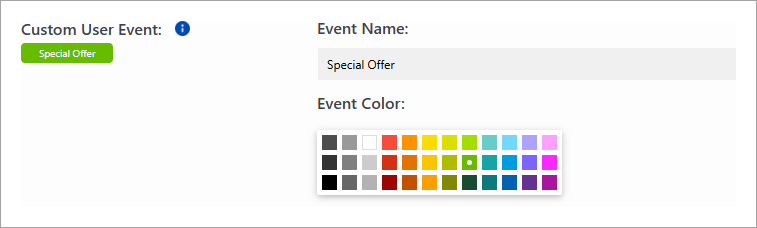
Verify the Custom User Event that will be triggered in your dashboard whenever a user signs up through the Subscribe / Newsletter. We've chosen a default for you when you selected the type above, but feel free to customize the name and color. This event will appear in your Dashboard for a user when they subscribe via this tool. You can also hook up this event to various 3rd party integrations (see the next step).
Step 10
When a user signs up through the Subscription Booster, you can trigger a direct integration with either Mailchimp or Zapier. For example, you can add a user directly to any audience in Mailchimp, or trigger any Zap.
To set up your Mailchimp integration, follow these steps.
To set up your Zapier integration, follow these steps.
You can also skip this step and set up your own custom integration from the Logic page in your Webapp.
Step 11
Click Save to save and apply your changes.
The through the Subscription Booster will now appear on the page(s) you specified in Step 2.
Next Steps
- Set up more rules that trigger additional integrations.
- Add your through the Subscribe / Newsletter event to your dashboard's User Journey.
Need custom settings per page?
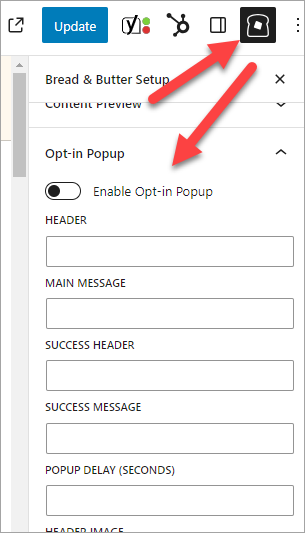
All Subscribe / Newsletter settings can be configured at the page level, allowing you to have different content and behavior for specific pages. Just follow these quick steps:
- Open the page editor for the page or post.
- Click the Bread & Butter logo at the top right, or click on the Options button, and selecting Bread & Butter under Plugins.
- Expand the Subscription Booster section in the right panel.
- Click Enable, and then make your changes.
Don’t use Bread & Butter? Want to learn more about how Bread & Butter solves the four biggest problems facing marketers today? Book a demo and see how Bread & Butter is helping marketers make the most of their first-party data


Seeing changes in your match rates? With the end of third-party cookies & new regulations on how data can be shared (GDPR, CCPA or Data Protection Laws), what are you doing to make sure you aren’t caught out?
FUTURE PROOF YOUR DATA - LEARN MOREAdd authentication & API event tracking to your website/app with a script tag & configuration