Webflow: Instant Lead Capture
Last updated 01/25/2026
Before adding the Instant Lead Capture tool, make sure you have added the initialization script tag.
You can add the Bread & Butter Instant Lead Capture to any page on your site. The Instant Lead Capture appears on top of your page, prompting your users to authenticate with your website. It handles the entire authentication process, including registration, login, and forgot password.

Your visitors will now have the option to convert with one-click using the social accounts you make available to them. Once converted, the first and last name, along with the email address is recorded in the user journey of each visitor, available in the Bread & Butter dashboard. This data can then be exported to your favorite CRM such as Pipedrive.
Your visitors will also see a customizable success message after they have signed in.
Note: By default, the Instant Lead Capture tool appears at the top right corner of the browser window. You can it’s position in the browser window by following the instructions below. It can be enabled with the five most common social accounts, in sandbox mode so that you can get started right away. You can manage the sandbox accounts, along with other settings in the Bread & Butter webapp.
Step 1
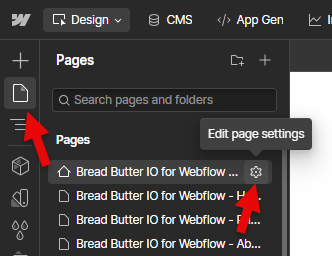
- In Designer, open Pages in the left nav.
- Hover over Home (or any other page).
- Click the gear icon to open the page settings.
Step 2
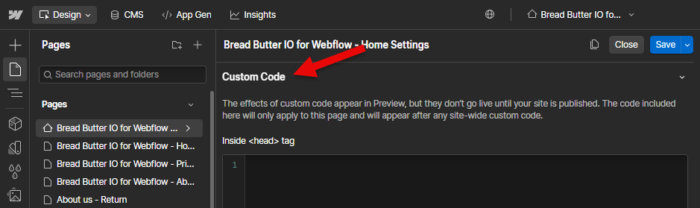
Scroll down to the Custom Code section, for the Head tag.
Step 3
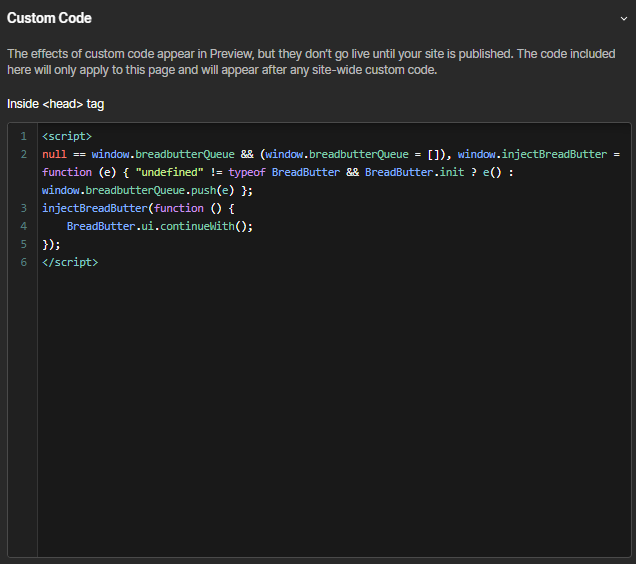
In the Head Code field, paste in the following script tag.
<script>
null == window.breadbutterQueue && (window.breadbutterQueue = []), window.injectBreadButter = function (e) { "undefined" != typeof BreadButter && BreadButter.init ? e() : window.breadbutterQueue.push(e) };
injectBreadButter(function () {
    BreadButter.ui.continueWith();
});
</script>
Step 4
- Click Save at the top of the menu.
- Publish your website, when ready.
Step 5
Repeat for any additional pages where you want the Instant Lead Capture tool to appear.
Step 6
OPTIONAL:
The Instant Lead Capture tool also allows you to specify options. Contact us to find out what is available.
For example, if you want the button theme to be icons, the page the user is returned to after login to be different, the position to be 50 pixels in from the bottom left, a delayed load time of 5 seconds and custom success message content, the code would look like this:
<script>
null == window.breadbutterQueue && (window.breadbutterQueue = []), window.injectBreadButter = function (e) { "undefined" != typeof BreadButter && BreadButter.init ? e() : window.breadbutterQueue.push(e) };
injectBreadButter(function () {
    BreadButter.ui.continueWith({
        button_theme: "round-icons",
        destination_url: "https://example.com/new_page/",
        delay_seconds: 5,
        continue_with_success_seconds: 5,
        continue_with_success_header: "Perfect, you're in!",
        continue_with_success_text: "You can now access our site and features",
        continue_with_position: { 'bottom': '50px', 'left': '50px' }
    });
});</script>