HubSpot Integration & Rules
Last updated 01/29/2026
The HubSpot Integration & Rules allow you to add or update contacts in HubSpot. You can also enable user session notes, which add activity notes each time a user visits your site.
Integration:
To create your HubSpot Integration in Bread & Butter, follow these steps:
- Log in to your Bread & Butter Dashboard at: https://app.breadbutter.io
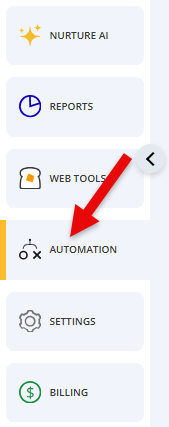
- Click Automation on the left side menu.
- Click on the Integrations tab, and under the integrations section, click Create New.

- In the dialog, select HubSpot.
- Choose a descriptive name for the Integration (note: this can be anything, and you can change the name later).
ADD IMG
- If you would like to have a note added to your HubSpot contacts, letting you know when they visit your site (session open), or when they leave your site (session close), enable both session options. For more information, see session start and end notes in HubSpot.
- Click Connect HubSpot.
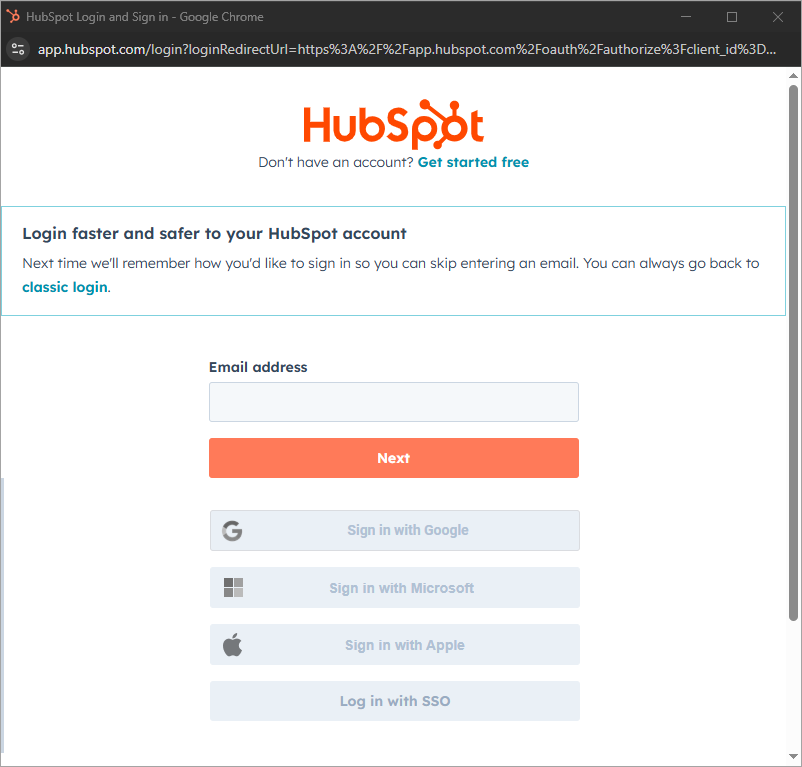
- Follow the instructions in the popup to authenticate with your HubSpot account, choose your account, and then review and allow permissions.
- When complete, you will be returned to the HubSpot setup dialog in Bread & Butter. Click Save & Close.
Rules:
To set up a Rule that uses your HubSpot integration, please follow these steps:
- Log in to your Bread & Butter Dashboard at: https://app.breadbutter.io
- Click Automation on the left side menu, then go to the Integrations tab.
- Under the Rules section, click Create New.

- Choose the HubSpot Integration that this Rule will use.
- Then, choose the User Event or System Event that will trigger this Rule.
- Give the rule a name so you can identify it in the Rules list.
- Choose whether this rule will be adding a contact to HubSpot, or removing the contact from HubSpot.

- If you select “Add”, you will see options to map Bread & Butter data to your HubSpot fields. Choose any fields you would like to map. For more information, see HubSpot field mapping.
- Click Save & close.
Your rule is now set up and ready to go. Whenever a user triggers the user event via your website, the rule will be triggered.
Don’t use Bread & Butter? Want to learn more about how Bread & Butter solves the four biggest problems facing marketers today? Book a demo and see how Bread & Butter is helping marketers make the most of their first-party data


Seeing changes in your match rates? With the end of third-party cookies & new regulations on how data can be shared (GDPR, CCPA or Data Protection Laws), what are you doing to make sure you aren’t caught out?
FUTURE PROOF YOUR DATA - LEARN MOREAdd authentication & API event tracking to your website/app with a script tag & configuration