How To Set Up Your Own Okta App (OpenID Connect)
Last updated 05/29/2026
Step 1
Log in to your Okta account as an Administrator.
Step 2
In the left navigation, click the Applications dropdown, then click on Applications.
Step 3
On the Applications page, click the Create App Integration button above the app list.
Step 4
- For Sign on method, select OIDC - OpenID Connect.
- For Application type, select Web Application.
- Click Next.

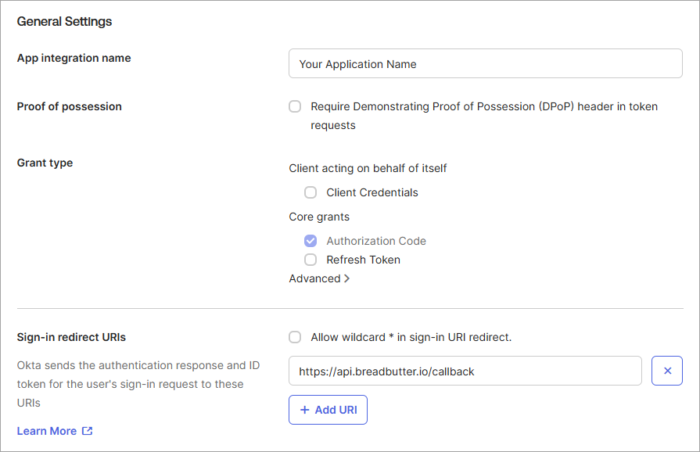
Step 5
- For Application Name, use your organization’s name.
- For Sign-in Redirect URIs, enter:
https://api.breadbutter.io/callback
Step 6
- Under Assignments, select and configure the best controlled access option to suit your needs.
- Click Save.

Step 7
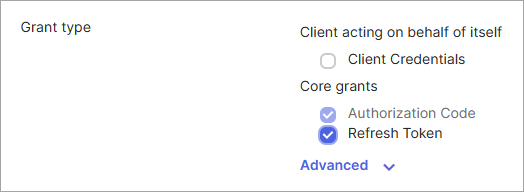
Optional - complete this step if your site will need a Refresh Token from Okta:
- Go to the General tab.
- Click Edit next to General Settings.
- Enable Refresh Token under the Grant type section.
- Click Save.
Note: This setting can be updated at any time.
Step 8
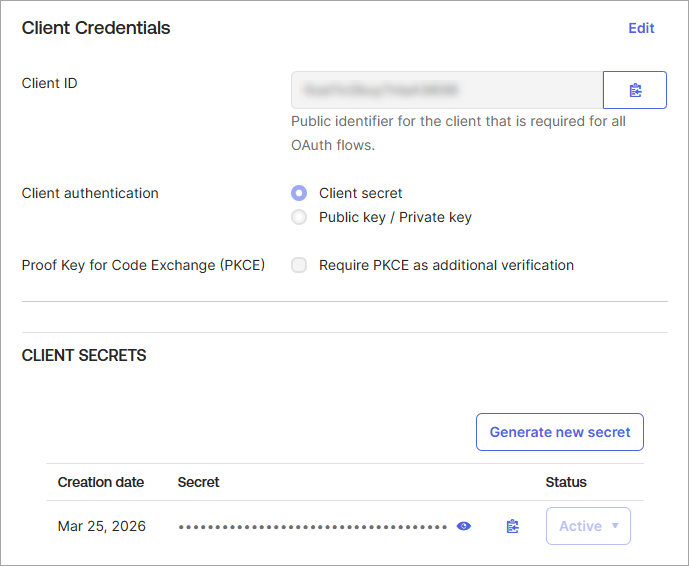
At the top of the General tab, copy and save the Client ID and Client Secret for the Bread & Butter setup below.
Step 9
Take note of your Okta account URL/Base URL (eg: https://company1.okta.com/). You can find this on the Sign On tab, as the Issuer field under OpenID Connect ID Token.
Step 10
Add your users to the App. Note: This step can be skipped if you've enabled Federation Broker Mode.
Step 11
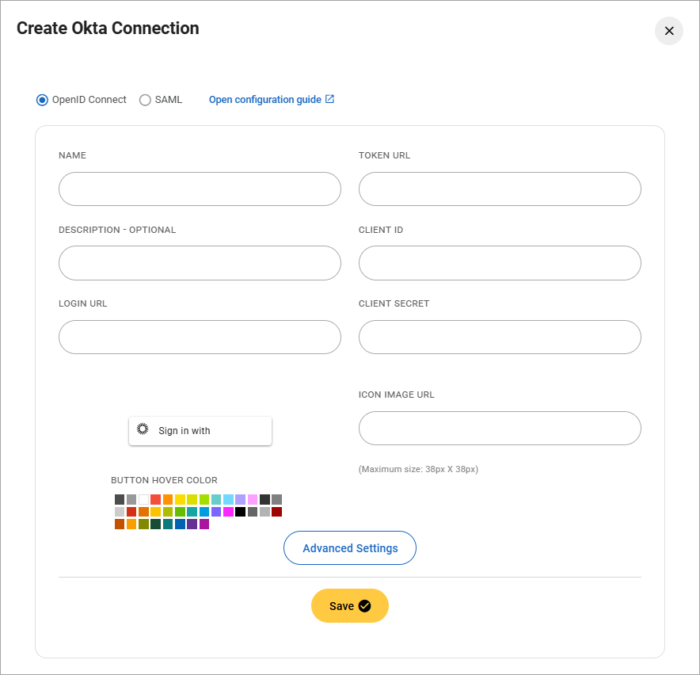
Bread & Butter Setup:
- Go to https://app.breadbutter.io/sign-in/
- Click Sign In and authenticate (or Sign Up make a new account and authenticate).
- Go to Settings in the left menu.
- Click on the Okta button under Global Conversion Methods > Enterprise Connections.
- Choose OpenID Connect for the protocol.
- Enter a name.
- Enter a description (optional).
- Using your Okta account URL/Base URL, enter the Login URL as:
[BASEURL]/oauth2/v1/authorize(eg: https://company1.okta.com/oauth2/v1/authorize) - Enter the Token URL as:
[BASEURL]/oauth2/v1/token(eg: https://company1.okta.com/oauth2/v1/token) - Enter your Client ID and Client Secret from the Okta Steps above.
- Click Save.
- Enable Okta by clicking the new entry in the Okta connections list.