Mailchimp Integration for the Subscribe / Newsletter
Last updated 06/01/2026
The Mailchimp Integration for Subscribe / Newsletter in WordPress allows you to add users to an audience in Mailchimp when they sign up using the Subscribe / Newsletter.
Follow these steps if you’re setting up Subscribe / Newsletter in WordPress, and need to enter the API Key and Audience ID.
Step 1
Log in to your Mailchimp Account.
Step 2
At the top right, click on your user account icon, then click Profile.
Step 3
Expand Extras, and select API keys.

Step 4
Click Create a Key.

Step 5
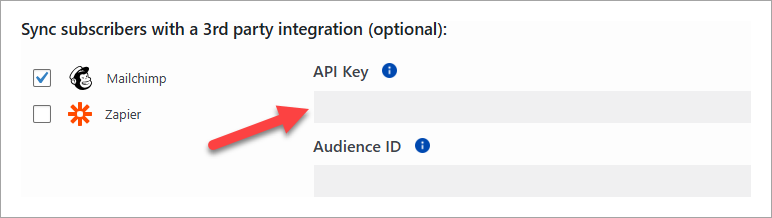
Copy and paste the key into the API Key field in the WordPress Subscribe / Newsletter page.
Step 6
Next, go back to Mailchimp and click Audience, then select your audience.
Step 7
- Go to the More options (3 dots) dropdown at the top right and select Audience settings.
- The Audience ID will be in the top section. Copy the Audience ID.

Step 8
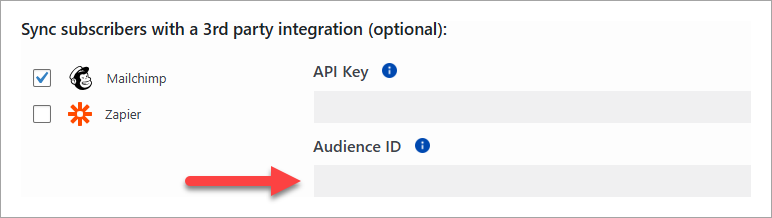
Paste the Audience ID into the field in the WordPress Subscribe / Newsletter page.
Step 9
Click Save. You're all done! When any user signs up for the Subscribe / Newsletter, they'll be added to the audience you specified.